
How to Route iMessage through Your Local OpenClaw Agent
How to Route iMessage through Your Local OpenClaw Agent
Routing iMessage through your local OpenClaw agent allows you to automate conversations, trigger workflows, and generate AI-powered replies — all while keeping your data under your control.
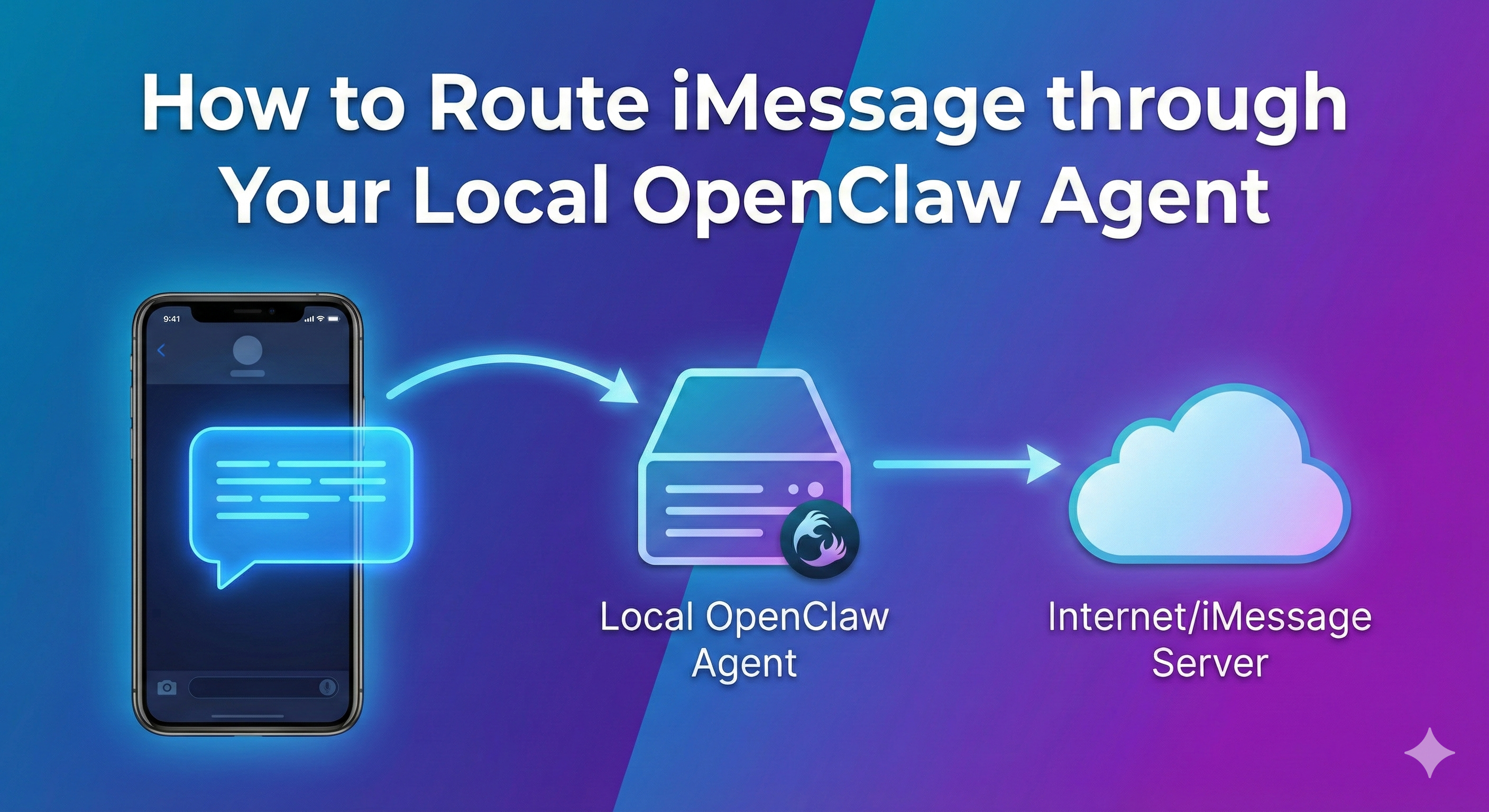
Instead of sending messages through a third-party cloud bot, your Mac acts as the bridge. Messages arrive in iMessage, pass to your OpenClaw agent, get processed, and return as replies.
Quick Summary
To route iMessage through a local OpenClaw agent, you run OpenClaw on your Mac (or local server), create a bridge using AppleScript or a database listener to detect incoming messages, forward them to the OpenClaw API via webhook, and send responses back through the Messages app — all within your local network.
Why Route iMessage Through OpenClaw?
iMessage is deeply integrated into the Apple ecosystem. But it has no official public bot API like Slack or Discord.
That means:
No native webhooks
No public automation endpoint
No official bot framework
So if you want AI-powered iMessage replies, you have to build your own bridge.
This approach gives you:
Full control over your data
Local processing with no third-party relay
Integration with other channels
Custom AI routing logic
Support for local LLMs
If you already manage multiple platforms, you might find it helpful to review how OpenClaw handles orchestration in our guide on managing multiple channels:
manage multiple chat channels with OpenClaw
How Can I Route iMessage Through a Local OpenClaw Agent?
Here’s the practical overview.
Step 1: Run OpenClaw Locally
You need a running OpenClaw instance on:
Your Mac
A Mac mini home server
Or another machine accessible via LAN
If you’re new to routing layers, read:
understanding the OpenClaw Agent Gateway
The Gateway handles incoming requests and routes them to the right skill or LLM.
Step 2: Detect Incoming iMessages
There are two reliable methods:
Option A: AppleScript Automation (Recommended for Beginners)
AppleScript can:
Detect new incoming messages
Extract sender + message text
Send data to a local HTTP endpoint
Option B: Monitor Messages Database (Advanced)
iMessage stores messages in:
~/Library/Messages/chat.db
This is a SQLite database.
You can create a watcher that:
Monitors new entries
Extracts message content
Forwards JSON payloads to OpenClaw
Most online tutorials stop here. But they rarely explain that this database can lock during active use, which causes read errors. You must implement safe polling intervals and handle concurrency.
Step 3: Forward to OpenClaw via Webhook
Your bridge should send a POST request like:
{
"channel": "imessage",
"sender": "+15551234567",
"message": "Are we meeting at 3?",
"conversation_id": "unique_thread_id"
}
OpenClaw then:
Processes via chosen skill
Applies memory context
Selects LLM
Generates response
Step 4: Send Response Back to iMessage
Using AppleScript:
Select chat
Send generated reply
Log response
This creates a full-duplex system.
Incoming → OpenClaw → AI → Outgoing.
How Does iMessage Integration Work Technically?
Let’s break down the architecture.
The Message Flow
iMessage receives message
macOS stores it in chat.db
Listener detects event
Script sends webhook to OpenClaw
OpenClaw processes request
Response returned
AppleScript sends reply
Architecture Overview
Component | Role |
macOS Messages | User-facing interface |
AppleScript | Automation bridge |
SQLite (chat.db) | Message storage |
OpenClaw Agent | AI routing & skills |
LLM (local/cloud) | Generates response |
If you're building advanced routing logic, you may want to debug locally first:
debug local OpenClaw agents
Do You Need a Mac to Connect iMessage to OpenClaw?
Yes.
iMessage automation requires:
macOS
Apple Messages app
AppleScript permissions
There is no official iMessage API for Linux or Windows.
You can:
Run OpenClaw on another machine
But the bridge must run on macOS
Many power users deploy:
Mac mini as always-on bridge
Home server + VPN
Dedicated automation account
What Permissions Are Required on macOS?
macOS security is strict. You’ll need:
Required Permissions
Accessibility access (for AppleScript control)
Full Disk Access (if reading chat.db)
Automation permission (Terminal → Messages)
Without these, scripts silently fail.
Common mistake:
Script works in Script Editor but fails in background service.
Always test from the same environment you’ll deploy from.
Is Routing iMessage Through a Local Agent Secure?
This is where most guides fall short.
Security depends entirely on how you expose your OpenClaw agent.
If you expose port 3000 to the public internet without protection, you’re inviting trouble.
Start here:
secure your OpenClaw server in 5 steps
And ensure proper network setup:
configure firewall and VPN for OpenClaw
Best Practices
Do NOT expose agent directly to internet
Use VPN (Tailscale recommended)
Add authentication to webhook endpoint
Rate limit incoming requests
Log activity securely
Important Clarification
This setup does NOT break Apple’s end-to-end encryption.
Encryption applies in transit between devices.
Your script runs locally after the message is decrypted on your Mac.
How Do You Prevent Message Loops and Spam Replies?
This is critical.
Without safeguards, your bot may:
Reply to its own replies
Trigger infinite loops
Spam group chats
Implement These Protections
Ignore messages sent by your own Apple ID
Add metadata tag to outgoing AI replies
Track recent message IDs
Enforce cooldown timer per conversation
Add max reply depth
Snippet-optimized checklist:
Ignore self-sent messages
Deduplicate by message ID
Add 2–5 second delay
Apply per-thread rate limiting
Log every outbound message
Here’s why that matters: iMessage group chats can generate rapid-fire updates. Without rate limits, your AI could respond multiple times unintentionally.
Can You Use Local LLMs for iMessage Responses?
Yes — and this is where OpenClaw shines.
You can connect:
Local models via Ollama
GPU-backed models
Or cloud APIs
If privacy is your goal, local models keep all data on-device.
Trade-offs:
Option | Pros | Cons |
Local LLM | Private, no API cost | Hardware intensive |
Cloud API | Faster setup | Recurring cost |
Hybrid | Flexible routing | More complex setup |
Advanced users often implement dynamic routing based on message type.
For example:
Short replies → Local model
Complex analysis → Cloud model
This is covered in advanced routing guides across OpenClaw’s ecosystem.
What’s the Difference Between Local and Cloud iMessage Automation?
Feature | Local Agent | Cloud Bot |
Data control | Full control | Third-party server |
Encryption handling | After local decrypt | Server-side |
Latency | LAN speed | Internet dependent |
Cost | Hardware + power | Monthly API |
Custom logic | Unlimited | Limited |
If your priority is sovereignty and flexibility, local wins.
If you want zero maintenance, cloud is simpler.
How Do You Troubleshoot iMessage Routing Problems?
Most common issues:
1. No Messages Detected
Check Full Disk Access
Verify database path
Ensure polling interval is correct
2. Webhook Fails
Check firewall
Confirm endpoint URL
Validate JSON structure
3. Reply Not Sending
AppleScript permissions missing
Incorrect chat identifier
Automation blocked
4. High Latency
Slow model response
Network bottleneck
Unoptimized prompt
When in doubt, isolate each layer:
Test AppleScript alone
Test webhook manually
Test OpenClaw skill separately
Layer-by-layer debugging saves hours.
Advanced Optimization Tips Most Guides Skip
Add Context Memory Windows
Avoid re-sending entire conversation history.
Use token-limited summaries.
Implement Message Batching
If multiple messages arrive within 3 seconds, combine them before sending to AI.
Cache Common Responses
Simple queries like:
“On my way”
“Thanks”
“👍”
Don’t need LLM processing.
Separate Group Chat Logic
Group chats require:
Sender identity tagging
Context attribution
Mention detection
Without this, replies may feel out of place.
Real-World Setup Example
Here’s a practical configuration:
Mac mini running macOS
OpenClaw running in Docker
Ollama for local LLM
AppleScript bridge
Tailscale VPN
Nginx reverse proxy
Rate limiter middleware
Result:
AI replies in under 2 seconds
No open public ports
Fully self-hosted
Logs stored locally
That’s production-ready.
Frequently Asked Questions
Does this violate Apple’s terms?
You are automating your own local device. There is no official API, but this method does not modify iMessage servers.
Can this work on iPhone only?
No. Automation requires macOS.
Can I restrict which contacts trigger AI replies?
Yes. Filter by sender ID before forwarding to OpenClaw.
Will this drain system resources?
Depends on model choice. Local LLMs require RAM and CPU/GPU.
Can I disable replies temporarily?
Yes. Add a toggle flag in your script or OpenClaw skill.
Final Thoughts
Routing iMessage through your local OpenClaw agent is not plug-and-play. But it gives you something cloud bots never will:
Control.
You control:
Where data lives
Which model processes it
How logic flows
What gets logged
What gets filtered
If you build it carefully — with proper security, rate limiting, and structured routing — you’ll have a private AI assistant embedded directly inside your Messages app.
And that’s powerful.