
How to Enable Image Generation Inside OpenClaw Chat
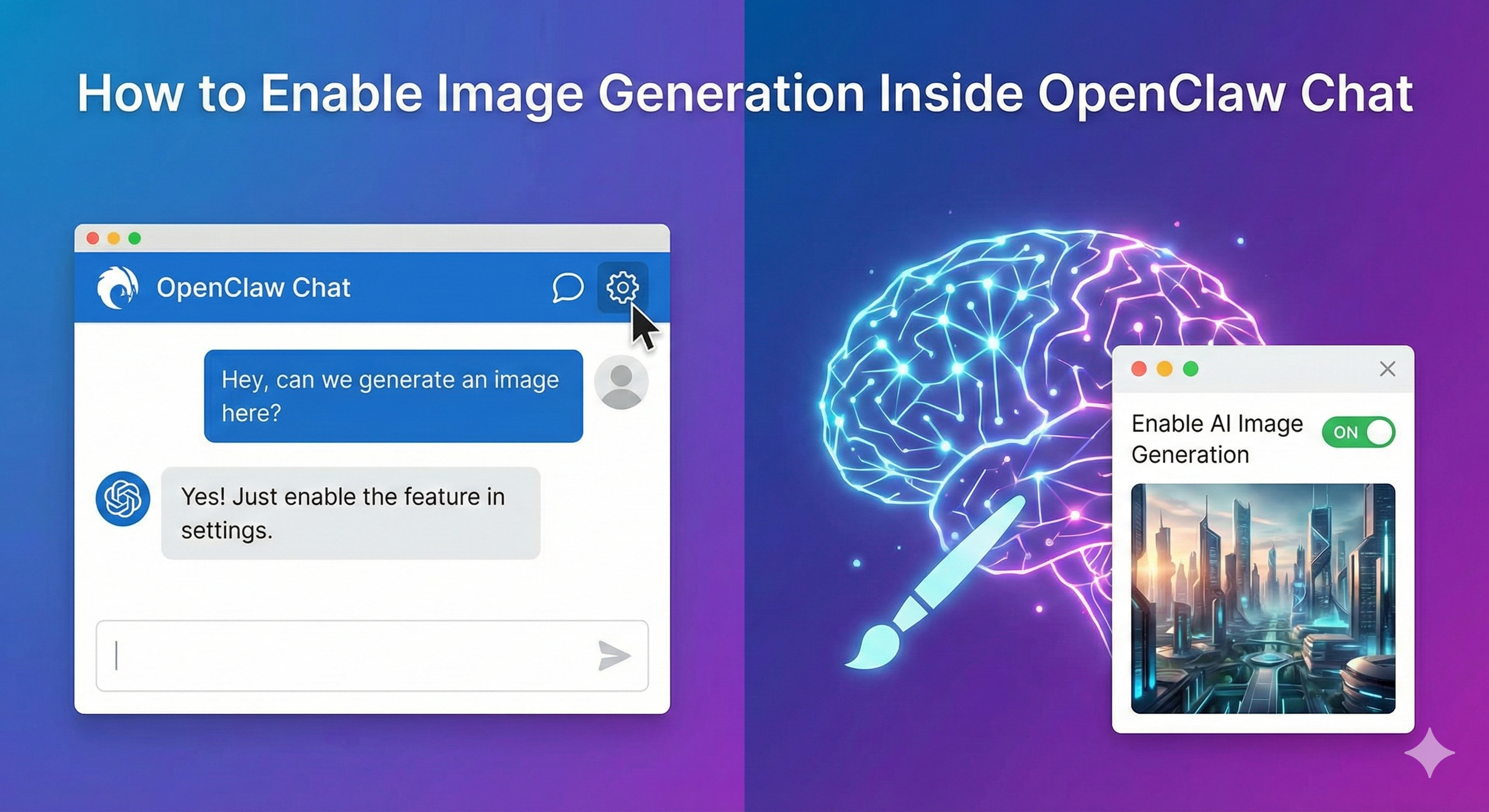
OpenClaw isn’t limited to text.
In 2026, multimodal AI is standard. That means your agent should be able to:
Generate images from prompts
Edit existing images
Create product mockups
Produce marketing graphics
Visualize UI concepts
Generate diagrams
Create social content assets
By enabling image generation inside OpenClaw chat, you turn your AI assistant into a creative engine — not just a reasoning system.
If you’re new to OpenClaw’s skill-based architecture, start with Build Your First OpenClaw Skill (Tutorial) to understand how extensions integrate with the core agent.
Now let’s configure image generation properly.
What “Image Generation in Chat” Actually Means
When enabled, OpenClaw can:
Detect image-related prompts
Route them to a compatible image model
Generate images via API or local model
Return images directly inside chat
Optionally store or reuse assets
Example:
User:
“Create a modern SaaS dashboard mockup in dark mode.”
OpenClaw:
Sends prompt to image model
Receives generated image
Displays inline
Optionally saves to storage
That’s multimodal execution.
Step 1: Choose Your Image Model Provider
You have three primary options:
1. Cloud Image APIs
OpenAI image models
Stability AI
Midjourney-style APIs
Replicate-hosted models
Pros:
High quality
No hardware required
Fast deployment
Cons:
Ongoing cost
External data processing
2. Local Diffusion Models
Stable Diffusion (locally hosted)
ComfyUI pipelines
Automatic1111
Ollama-compatible image models
Pros:
Full privacy
No per-image API cost
Custom fine-tuning
Cons:
GPU required
Higher setup complexity
If you’re already running local models for text, review Local LLMs vs Cloud APIs for OpenClaw to design a unified architecture.
Step 2: Install the Image Generation Skill
The skill should:
Detect image-related prompts
Structure prompt metadata
Handle negative prompts
Control aspect ratio
Manage seed values
Return image URL or binary
If you need a plugin template, explore the OpenClaw plugin publishing workflow in Publish a Plugin on OpenClawForge Directory.
Core structure example:
{
"prompt": "Modern SaaS dashboard UI",
"size": "1024x1024",
"style": "photorealistic",
"negative_prompt": "blurry, distorted"
}
The skill routes this to your chosen model.
Step 3: Configure LLM Routing Logic
Image generation should not trigger on every visual mention.
Best practice:
Add keyword detection (“generate image”, “create mockup”, “draw”, “render”)
Use intent classification
Separate text-only vs multimodal workflows
To optimize cost and routing logic, consult Advanced OpenClaw Routing with Multiple LLMs.
This prevents accidental expensive calls.
Step 4: Return Images Inline in Chat
Your OpenClaw gateway must support:
Image URLs
Base64 image rendering
Markdown image embedding
File upload attachments
If you’re integrating across messaging platforms (Slack, Teams, WhatsApp), ensure channel compatibility via Manage Multiple Chat Channels with OpenClaw.
Some platforms require hosted URLs rather than raw binaries.
Step 5: Enable Image Editing & Variations
Modern image models allow:
Image-to-image transformations
Background removal
Style transfer
Upscaling
Object replacement
Your skill can support:
{
"mode": "edit",
"image_input": "image.png",
"instruction": "Change background to sunset beach"
}
This turns OpenClaw into a lightweight creative suite.
Step 6: Add Storage & Asset Management
Generated images can be:
Stored in AWS S3
Saved locally
Uploaded to Google Drive
Pushed into CMS systems
Attached to social media drafts
For secure file handling, review Handle File Uploads in OpenClaw Skills.
Never store unencrypted image assets in public directories unintentionally.
High-Impact Use Cases
1. Marketing & Social Media
Generate post graphics
Create thumbnail variants
Design ad mockups
Produce Instagram-style visuals
Combine with content workflows via Top OpenClaw Plugins for Social Media Management for a full automation stack.
2. E-commerce Product Visuals
Generate lifestyle mockups
Create banner images
Produce A/B test creatives
Generate packaging previews
3. SaaS & UI Prototyping
Create wireframes
Generate feature concept visuals
Produce landing page mockups
4. Educational & Diagram Generation
Architecture diagrams
Flowcharts
Concept illustrations
Technical visual aids
Cost Considerations (2026 Reality)
Image generation can be expensive depending on:
Resolution
Model type
API pricing
Batch generation volume
To optimize:
Default to smaller image sizes
Limit variations
Cache frequently reused prompts
Use local models for bulk generation
Hybrid architecture works best:
Cloud for premium assets
Local for high-volume testing
Security & Compliance
Image generation introduces risks:
Prompt injection
NSFW misuse
Data leakage in prompts
IP concerns
Best practices:
Filter prompts
Restrict user roles
Log generation requests
Limit public exposure
Moderate outputs
Before enabling public image generation, review Ultimate OpenClaw Security Checklist 2026.
Common Mistakes to Avoid
Sending all prompts to image model without intent detection
Forgetting resolution limits
Ignoring storage cleanup
Not rate limiting generation
Allowing unmoderated public access
Failing to compress images
Image generation is compute-heavy. Treat it as such.
The Bigger Shift: Multimodal Agents
Text-only agents are fading.
Modern AI systems combine:
Text
Images
Audio
Files
Code
Enabling image generation inside OpenClaw moves you toward a fully multimodal assistant.
Instead of asking:
“Can you describe what this might look like?”
You can say:
“Show me.”
Final Takeaway
Adding image generation to OpenClaw transforms it from:
A reasoning assistant
into
A creative engine
With the right skill configuration, routing logic, and security safeguards, you can:
Generate
Edit
Store
Distribute
Automate
All within a single chat interface.
In 2026, productivity isn’t just about faster writing.
It’s about multimodal execution.
And image generation is one of the most powerful extensions you can enable.