
How to Connect OpenClaw to Microsoft Teams for Enterprise
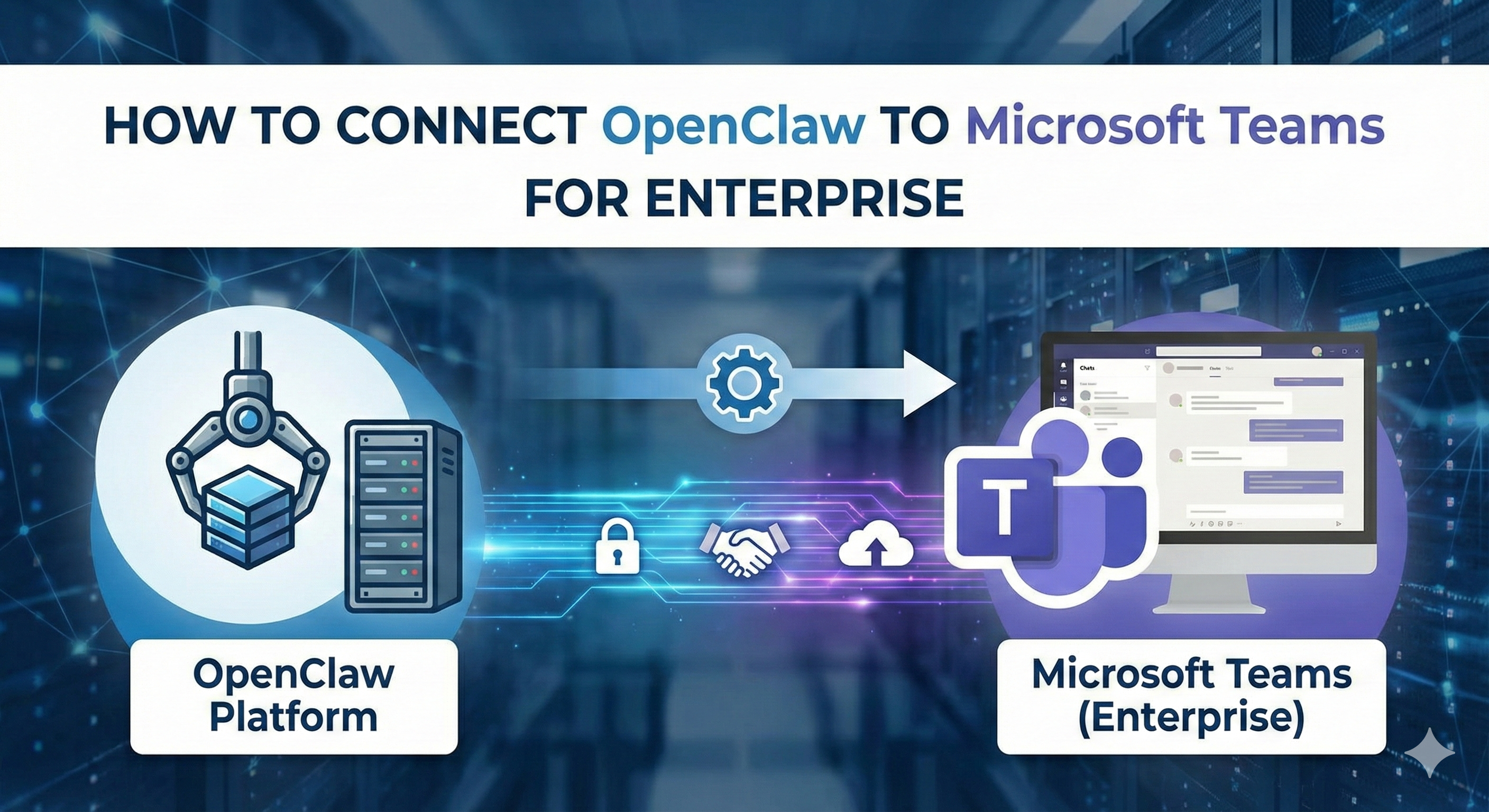
Microsoft Teams is now the operational backbone of thousands of enterprises.
It handles:
Internal messaging
Video conferencing
File collaboration
Project communication
Department channels
Enterprise app integrations
But by default, Teams bots are limited.
They respond.
They notify.
They trigger workflows.
They do not reason across systems.
They do not coordinate complex workflows.
They do not maintain persistent memory.
That’s where OpenClaw changes the equation.
If you're new to OpenClaw’s architecture, start with Understanding the OpenClaw Agent Gateway to see how it connects external channels like Teams to your autonomous agent core.
This guide walks you through connecting OpenClaw to Microsoft Teams securely and correctly for enterprise deployment.
Why Connect OpenClaw to Microsoft Teams?
When integrated properly, OpenClaw inside Teams can:
Monitor project channels
Summarize meetings automatically
Detect task assignments
Draft client updates
Trigger CRM updates
Route support issues
Escalate compliance alerts
Coordinate cross-department workflows
Unlike traditional Teams bots, OpenClaw acts as an autonomous execution layer.
If you’re comparing broader ecosystems, see OpenClaw vs Microsoft Copilot to understand where agentic AI expands beyond built-in Copilot features.
Enterprise Architecture Overview
Before setup, understand the architecture:
Microsoft Teams
↓
Azure Bot Registration
↓
Microsoft Graph API
↓
OpenClaw Agent Gateway
↓
Core Agent (LLM + Skills + Memory)
OpenClaw does not replace Teams.
It augments it with reasoning, memory, and multi-system execution.
Step 1: Register an Azure Bot for Teams
To integrate OpenClaw with Teams, you must:
Create an Azure App Registration
Enable Microsoft Graph API permissions
Generate a client secret
Configure bot messaging endpoint
Key Permissions Required:
Chat.ReadWrite
TeamsActivity.Send
For broader API security practices, review Securing OpenClaw API Keys for Developers before deploying in enterprise environments.
Enterprise tip:
Always restrict scopes to minimum required privileges.
Step 2: Configure OpenClaw Channel Integration
Inside your OpenClaw environment:
Enable Teams channel support
Insert Azure App ID
Add Client Secret
Define redirect URI
Configure webhook endpoint
If you're unsure how OpenClaw routes channel traffic, our breakdown of Manage Multiple Chat Channels with OpenClaw explains multi-channel orchestration best practices.
This is where most misconfigurations happen — particularly webhook URL mismatches.
Step 3: Define Role-Based Access Controls
In enterprise environments, you do NOT want OpenClaw to execute unrestricted actions.
Best practice:
Create department-based access policies
Restrict financial workflows
Require approval for sensitive automations
Log all execution events
For hardened deployments, reference Ultimate OpenClaw Security Checklist 2026 before enabling production-level execution.
Step 4: Configure Enterprise Skills
Once connected, configure Teams-specific workflows.
High-impact use cases:
1. Meeting Summaries
Monitor meeting transcripts
Generate action-item lists
Assign owners
Push tasks to project management tools
2. Sales Channel Monitoring
Detect new deal mentions
Update CRM automatically
Draft follow-up emails
Flag stalled opportunities
3. Compliance Alerts
Detect policy violations
Flag risky keywords
Notify compliance teams
Log audit trail
4. IT Ticket Routing
Detect issue keywords
Create helpdesk ticket
Assign technician
Track resolution
5. Executive Briefings
Summarize daily department activity
Extract blockers
Generate leadership digest
For broader enterprise deployment patterns, see Fork OpenClaw for Enterprise Use Cases.
Step 5: Enable Memory & Context Persistence
The true advantage over native Teams bots is persistent memory.
OpenClaw can:
Track long-running projects
Detect recurring issues
Remember decision history
Maintain client-specific context
To optimize memory scaling for enterprise workloads, review Manage Memory & Context Windows in OpenClaw.
Without memory tuning, enterprise channels can overwhelm context windows.
Security Considerations for Enterprise
Microsoft Teams environments are compliance-heavy.
Before full deployment:
1. Use Private Networking
Avoid exposing OpenClaw publicly.
2. Enable SSL/TLS
Encrypt all webhook traffic.
3. Implement MFA on Admin Access
Protect control panel access.
4. Log Every Action
Maintain audit trails for compliance.
5. Limit Autonomous Financial Actions
Require human confirmation for transactions.
Enterprise misconfiguration risk is real. Security must be deliberate.
Cost Considerations
Enterprise deployments incur:
Azure hosting costs
LLM API usage
Token processing fees
Server uptime costs
Monitoring infrastructure
To reduce cost:
Route lightweight classification to smaller models
Batch process summaries
Limit continuous monitoring intervals
Cache frequent queries
Agentic systems can lower labor costs — but must be architected efficiently.
When Microsoft Copilot Alone Is Enough
You may not need OpenClaw if:
You only require document summarization
You operate entirely inside Microsoft ecosystem
You don’t need cross-system orchestration
You don’t require autonomous execution
But for organizations that rely on:
Multi-platform workflows
External CRM integration
Automated task execution
Cross-department coordination
OpenClaw extends Teams beyond messaging into operations.
Final Takeaway
Connecting OpenClaw to Microsoft Teams transforms Teams from:
A communication hub
into
An operational command center.
Slack-style bots respond to commands.
Copilot assists with content.
OpenClaw reasons, plans, and executes across systems.
In 2026, the enterprises gaining competitive advantage are not adding more meetings.
They are embedding autonomous intelligence into their communication layer.
And Microsoft Teams is the natural gateway.