
Building an Automated Helpdesk Using OpenClaw and Discord
Running customer support can feel overwhelming, especially when you're managing a growing community or business. Every question needs an answer, every issue needs attention, and your team can only work so many hours a day. That's where automation steps in to help.
An automated helpdesk built with OpenClaw and Discord creates a support system that handles common questions, routes tickets to the right people, and keeps everything organized—without requiring a massive team or expensive software. OpenClaw is an open source AI agent framework that connects to Discord through webhooks and bot integrations, turning your Discord server into a capable support hub.
Quick Answer: An automated helpdesk using OpenClaw and Discord combines Discord's communication platform with OpenClaw's AI agent capabilities to create a self-hosted support system. It routes support tickets automatically, answers common questions using AI, maintains conversation history, and scales with your community—all while keeping your data under your control.
What Is an Automated Helpdesk and Why Use OpenClaw with Discord?
An automated helpdesk is a support system that handles customer inquiries without constant human intervention. Instead of manually answering every question, the system uses AI, predefined workflows, and smart routing to manage tickets efficiently.
Discord has become more than just a gaming platform. Companies, open source projects, and online communities use it as their primary communication hub. When you combine Discord with OpenClaw, you get several advantages:
Cost efficiency matters. Managed support platforms like Zendesk or Intercom charge per agent, often starting at $50-100 per month per seat. A self-hosted OpenClaw Discord helpdesk runs on infrastructure you already control, with costs limited to server hosting.
You own your data. All support conversations, user information, and ticket history stay on your servers. This matters for privacy-conscious organizations and projects handling sensitive information.
Flexibility beats rigid platforms. OpenClaw's open source nature means you can customize every aspect of your helpdesk. Want custom routing logic? Build it. Need integration with your existing tools? Code it. The system adapts to your workflow instead of forcing you into someone else's template.
Your community already uses Discord. Adding support capabilities to an existing Discord server is easier than convincing users to adopt a new platform. They submit tickets in the same place they hang out.
The automation handles repetitive questions while your team focuses on complex issues that actually need human judgment. This isn't about replacing support staff—it's about making them more effective.
How Does OpenClaw Work with Discord for Customer Support?
OpenClaw acts as an intermediary between Discord's interface and your support logic. Understanding the architecture helps you build a reliable system.
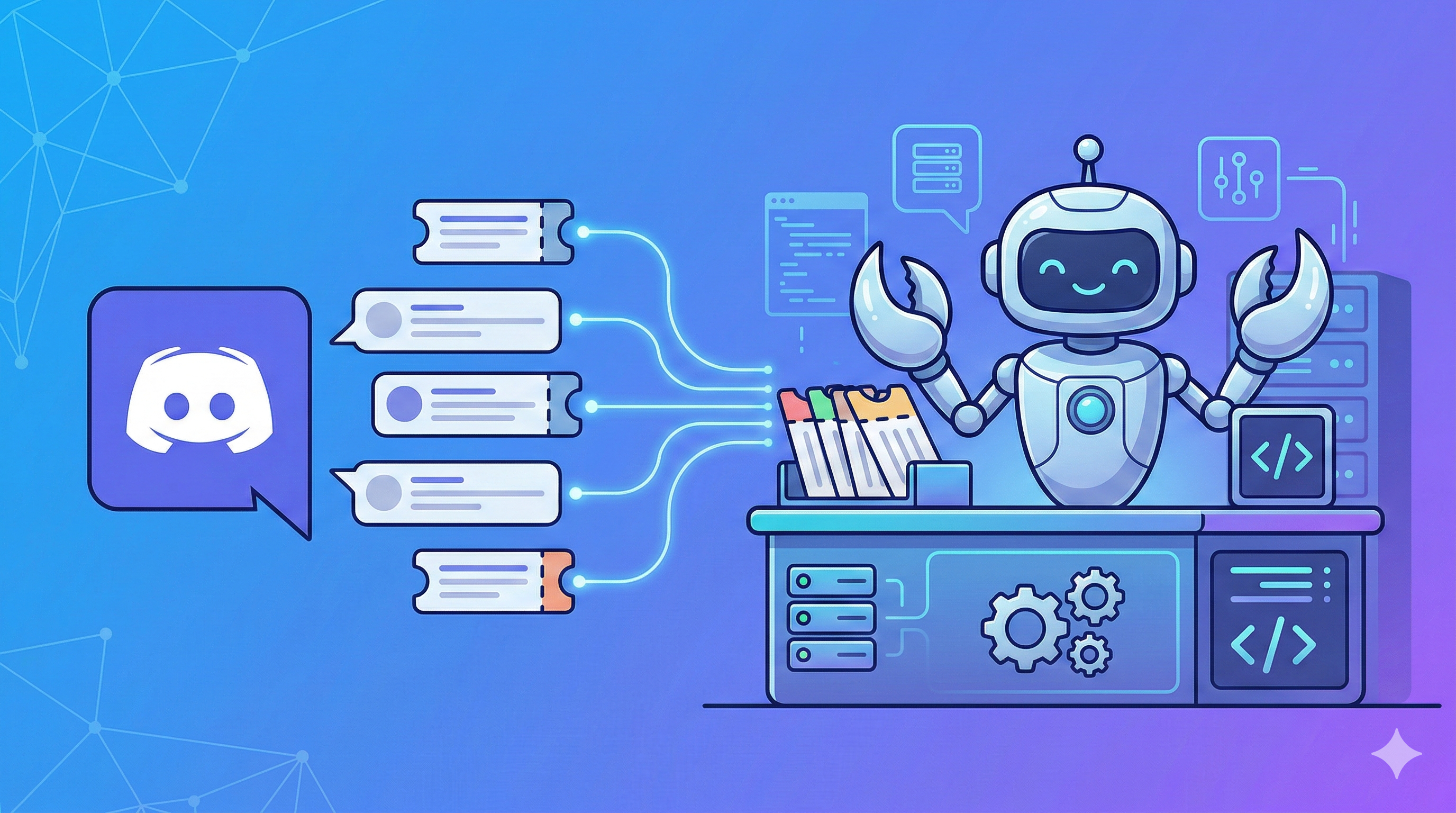
At its core, OpenClaw receives messages from Discord through webhooks or bot connections. When someone sends a message in a designated support channel, Discord forwards that message to OpenClaw's API endpoint. OpenClaw processes the message using its AI capabilities and configured workflows, then sends a response back to Discord.
Here's how the flow works in practice:
- User submits a support request in a Discord channel or via direct message
- Discord forwards the message to OpenClaw's webhook endpoint
- OpenClaw analyzes the message using its AI agent to understand intent and context
- The system checks configured workflows to determine if this matches a known issue type
- OpenClaw either responds immediately (for known issues) or creates a ticket for human review
- Ticket information gets stored in your database with full conversation history
- Updates flow back to Discord so users see responses in real-time
The beauty of this setup is layered intelligence. OpenClaw can tap into your knowledge base, previous tickets, documentation, and custom data sources to provide accurate answers. When it encounters something outside its training, it escalates gracefully instead of giving wrong information.
You can configure different agent behaviors for different support scenarios. A billing question might trigger one workflow that checks payment systems, while a technical bug report triggers another that creates a detailed ticket with system information attached.
For teams managing multiple projects, you'll find value in learning about OpenClaw's powerful integrations and hidden features that extend beyond basic Discord connectivity.
What Do You Need to Set Up OpenClaw Discord Helpdesk?
Before diving into configuration, gather these prerequisites to avoid setup roadblocks.
Server Infrastructure:
- A server or VPS with at least 2GB RAM (4GB recommended for larger communities)
- Ubuntu 20.04 or later, or another Linux distribution
- Node.js 18+ installed
- Docker (optional but recommended for easier deployment)
- PostgreSQL or MySQL database for ticket storage
- A domain name with SSL certificate (Let's Encrypt works perfectly)
Discord Requirements:
- Admin access to your Discord server
- Ability to create Discord applications in the Developer Portal
- A designated support channel or category
- Permission to add bots to your server
OpenClaw Setup:
- OpenClaw repository cloned or deployed
- Basic understanding of YAML configuration files
- API keys for any external services you want to integrate
- Knowledge base documents or FAQs ready for AI training
Optional But Useful:
- Redis for caching and session management
- Monitoring tools like Prometheus or Grafana
- Backup solution for your database
- Rate limiting proxy if you expect high traffic
The total setup typically takes 2-4 hours for someone comfortable with server administration. If you're less experienced with Linux servers, budget extra time for learning.
Storage needs vary based on your ticket volume. A small community might use 1-2GB monthly, while active support channels could accumulate 10-20GB annually when storing full conversation histories and attachments.
How Do You Create and Configure a Discord Bot for OpenClaw?
Creating the Discord bot is your first hands-on step. Discord's Developer Portal makes this straightforward.
Step 1: Create a Discord Application
Navigate to https://discord.com/developers/applications and click "New Application." Give it a clear name like "Support Bot" or "Helpdesk Assistant." This name appears when the bot is mentioned, so choose something your users will recognize.
Step 2: Configure Bot Settings
Under your application settings, find the "Bot" section in the left sidebar. Click "Add Bot" to convert your application into a bot user. Here's where critical configuration happens:
- Toggle on "Message Content Intent" - This allows your bot to read message content, essential for processing support requests
- Enable "Server Members Intent" - Helps the bot access member information for ticket attribution
- Set bot permissions - You'll need: Read Messages, Send Messages, Manage Threads, Read Message History, and Embed Links at minimum
Step 3: Generate and Save Your Bot Token
Click "Reset Token" to generate your bot token. Copy this immediately and store it securely—you'll need it for OpenClaw configuration. Never commit this token to version control or share it publicly.
Step 4: Configure OAuth2 Settings
Navigate to OAuth2 → URL Generator. Select these scopes:
bot(required)applications.commands(for slash commands)
Under bot permissions, select the same permissions you configured earlier. The generator creates an invite URL.
Step 5: Invite Bot to Your Server
Copy the generated URL and paste it into your browser. Select your Discord server and authorize the bot. It appears offline until you connect it to OpenClaw.
Step 6: Set Up Channel Structure
Create a dedicated support category in your Discord server with these channels:
#open-tickets- Where new tickets appear#closed-tickets- Archive of resolved issues#support-queue- Internal view for support staff
Configure permissions so regular users can only view #open-tickets, while support staff sees everything.
Important security note: Bot tokens are equivalent to passwords. If exposed, someone could impersonate your bot and access your Discord server's messages. Store tokens in environment variables, never hardcode them.
How Do You Connect OpenClaw to Your Discord Server?
With your Discord bot created, it's time to link it with OpenClaw and bring your helpdesk to life.
Step 1: Install OpenClaw
Clone the OpenClaw repository to your server:
git clone https://github.com/openclaw/openclaw.git
cd openclaw
npm install
For production deployments, Docker Compose simplifies the process by bundling OpenClaw with its dependencies.
Step 2: Configure Environment Variables
Create a .env file in your OpenClaw directory:
DISCORD_BOT_TOKEN=your_bot_token_here
DISCORD_GUILD_ID=your_server_id
DISCORD_SUPPORT_CHANNEL=channel_id_for_support
DATABASE_URL=postgresql://user:password@localhost:5432/helpdesk
OPENCLAW_API_KEY=generate_a_secure_random_key
To find your Guild ID and Channel IDs, enable Developer Mode in Discord (User Settings → Advanced → Developer Mode), then right-click on your server or channel and select "Copy ID."
Step 3: Configure the Discord Channel Integration
OpenClaw uses YAML files for channel configuration. Create or edit config/channels/discord.yaml:
channels:
  discord:
    enabled: true
    token: ${DISCORD_BOT_TOKEN}
    guildId: ${DISCORD_GUILD_ID}
    supportChannelId: ${DISCORD_SUPPORT_CHANNEL}
    dmPolicy: "all" # or "staff-only" to restrict DMs

    # Auto-response settings
    autoRespond: true
    typingIndicator: true

    # Ticket creation settings
    createThreads: true
    threadArchiveTime: 1440 # minutes (1 day)
Step 4: Set Up the Agent Configuration
Configure how OpenClaw's AI responds to support requests in config/agents/support.yaml:
agent:
  name: support-agent
  model: gpt-4
  temperature: 0.7

  systemPrompt: |
    You are a helpful support assistant for [Your Project Name].
    Answer questions accurately and concisely.
    If you don't know something, say so and create a ticket for human review.
    Be friendly but professional.

  knowledgeBase:
    - ./docs/faq.md
    - ./docs/troubleshooting.md
    - ./docs/getting-started.md
Step 5: Initialize the Database
Run database migrations to create necessary tables:
npm run db:migrate
This creates tables for tickets, users, conversation history, and knowledge base entries.
Step 6: Start OpenClaw
Launch the OpenClaw service:
npm start
For production, use a process manager like PM2 or systemd to keep OpenClaw running:
pm2 start npm --name "openclaw-helpdesk" -- start
pm2 save
pm2 startup
Step 7: Test the Connection
Your bot should now appear online in Discord. Send a test message in your support channel. If configured correctly, OpenClaw receives the message and responds. Check your logs for any connection errors.
If you're working with code repositories alongside your support system, you might appreciate how OpenClaw manages pull requests on GitHub to streamline development workflows.
What Are the Best Practices for Organizing Support Tickets in Discord?
Organization separates functional helpdesks from chaotic ones. These strategies keep things manageable as your ticket volume grows.
Use Thread-Based Tickets
Discord threads provide perfect isolation for individual support conversations. When a user submits a ticket, automatically create a new thread with:
- The user's question as the thread name
- A unique ticket ID in the first message
- Relevant metadata (creation time, priority level, category)
Threads keep conversations contained and searchable. They auto-archive after inactivity, cleaning up your channel view without deleting history.
Implement Ticket Categories
Tag tickets by type to enable faster routing:
- Technical issues
- Billing questions
- Feature requests
- Bug reports
- General inquiries
Categories help you spot patterns. If 40% of tickets are about the same confusing feature, that signals a documentation problem.
Set Up Priority Levels
Not all tickets are equally urgent. Create a simple priority system:
- Critical - Service down, data loss, security issues (respond within 1 hour)
- High - Major functionality broken (respond within 4 hours)
- Normal - Standard questions and issues (respond within 24 hours)
- Low - Feature requests, general questions (respond within 72 hours)
Configure OpenClaw to assign priority automatically based on keywords. Messages containing "down," "broken," or "urgent" trigger higher priority.
Maintain a Clean Archive
Closed tickets shouldn't clutter active support channels. Create an archive workflow:
- When a ticket is resolved, move the thread to
#closed-tickets - Add a resolution summary and close timestamp
- Mark the ticket status in your database
- Export full conversations to long-term storage monthly
This keeps your support queue showing only active work while preserving history for future reference.
Create Template Responses
Build a library of common responses for frequently asked questions. Store these in OpenClaw's configuration so the AI can retrieve them:
templates:
  password_reset: |
    To reset your password:
    1. Visit https://yoursite.com/reset
    2. Enter your email address
    3. Check your inbox for a reset link
    4. Follow the link and create a new password

  billing_inquiry: |
    For billing questions, please provide:
    - Your account email
    - Invoice number (if applicable)
    - Description of the issue
    I'll escalate this to our billing team.
Templates ensure consistent, accurate responses while saving time.
Track Response Metrics
Monitor these key metrics to improve your helpdesk:
- Average first response time
- Average resolution time
- Tickets resolved by AI vs. human staff
- Common ticket categories
- Peak support hours
OpenClaw can log this data automatically. Review it monthly to identify improvement opportunities.
How Do You Automate Ticket Routing and Response Templates?
Automation shines when routing tickets to the right people and providing instant answers to common questions.
Set Up Smart Routing Rules
Configure OpenClaw to analyze ticket content and route accordingly:
routing:
  rules:
    - name: billing-route
      keywords: ["invoice", "payment", "charge", "subscription", "billing"]
      action: assign_to_role
      role: "billing-team"
      priority: high

    - name: technical-route
      keywords: ["error", "bug", "crash", "not working", "broken"]
      action: assign_to_role
      role: "engineering"
      priority: high

    - name: sales-route
      keywords: ["pricing", "upgrade", "enterprise", "demo"]
      action: assign_to_role
      role: "sales"
      priority: normal
When a ticket matches multiple rules, priority determines which takes precedence.
Implement Auto-Responses for FAQs
Train OpenClaw to recognize common questions and respond immediately:
autoResponses:
  - trigger: "how do I install"
    response: |
      Installation is straightforward! Here's the quick guide:
      1. Download the latest release from our GitHub
      2. Extract the files to your desired directory
      3. Run `npm install` to install dependencies
      4. Copy `.env.example` to `.env` and configure
      5. Run `npm start`

      Full documentation: https://docs.yourproject.com/install

  - trigger: ["password", "forgot password", "reset password"]
    response: template:password_reset
    autoClose: false
    assignTo: support-team
The system responds instantly while still creating a ticket for human follow-up if needed.
Configure Escalation Workflows
Some issues need human attention. Set escalation triggers:
escalation:
  conditions:
    - aiConfidence: < 0.6  # AI isn't sure about the answer
      action: escalate_to_human

    - conversationLength: > 5  # Back-and-forth exceeds 5 messages
      action: escalate_to_human

    - keywords: ["angry", "unacceptable", "complaint"]
      action: escalate_to_manager
      priority: high

    - timeWithoutResolution: > 24h
      action: escalate_priority
This prevents AI from giving wrong answers or frustrating users with unhelpful loops.
Use Rich Embeds for Better UX
Discord embeds make information more scannable:
embedTemplates:
  ticketCreated:
    color: 0x00ff00
    title: "Ticket Created Successfully"
    fields:
      - name: "Ticket ID"
        value: "{ticketId}"
      - name: "Status"
        value: "Open"
      - name: "Priority"
        value: "{priority}"
      - name: "Assigned To"
        value: "{assignedRole}"
    footer: "We typically respond within {expectedResponseTime}"
Embeds provide visual structure that plain text lacks, making status updates and responses easier to parse.
For developers looking to extend OpenClaw's capabilities, exploring how to monetize OpenClaw code through paid plugins opens interesting possibilities for custom helpdesk features.
What Security Considerations Matter for Discord Helpdesks?
Security isn't optional when handling user data and support conversations. These considerations protect both your users and your organization.
Protect Sensitive Information
Support conversations often contain personal details, account information, or system configurations. Implement these safeguards:
- Never log bot tokens or API keys - Use environment variables and exclude them from application logs
- Sanitize user input - Prevent injection attacks by validating and escaping all user-provided data
- Encrypt database connections - Always use SSL/TLS for database connections
- Limit data retention - Delete or anonymize old tickets based on your privacy policy
- Implement access controls - Only support staff should access ticket history and user data
Configure Role-Based Permissions
Discord's permission system provides granular control. Create these roles:
- Support Team - Can view and respond to all tickets, access ticket history
- Support Manager - Above plus ability to modify configurations and view analytics
- Bot Admin - Can restart services, modify bot settings, access logs
Never give regular users access to bot configuration or ticket databases.
Validate Webhook Signatures
If using webhooks instead of the bot gateway, verify Discord's signatures to prevent spoofed requests:
const crypto = require('crypto');

function verifyDiscordSignature(req) {
  const signature = req.headers['x-signature-ed25519'];
  const timestamp = req.headers['x-signature-timestamp'];
  const body = JSON.stringify(req.body);

  const isVerified = crypto.verify(
    'ed25519',
    Buffer.from(timestamp + body),
    {
      key: Buffer.from(DISCORD_PUBLIC_KEY, 'hex'),
      format: 'raw'
    },
    Buffer.from(signature, 'hex')
  );

  return isVerified;
}
Unverified webhooks could let attackers inject false tickets or access support conversations.
Rate Limit API Calls
Prevent abuse by implementing rate limits:
- Limit ticket creation to 5 per user per hour
- Throttle bot responses to avoid Discord API rate limits
- Block users who repeatedly trigger spam filters
OpenClaw's configuration supports rate limiting through Redis-based tracking.
Audit Logging
Maintain detailed logs of:
- Who accessed which tickets
- Configuration changes
- Failed authentication attempts
- Escalations and priority changes
Store audit logs separately from application logs and retain them longer for compliance purposes.
Regular Security Updates
Keep all components current:
- Update OpenClaw when new versions release
- Patch Node.js and system packages
- Rotate bot tokens quarterly
- Review Discord permissions annually
Subscribe to security advisories for OpenClaw and its dependencies. You can set up custom RSS alerts with OpenClaw to monitor project updates automatically.
How Does OpenClaw Compare to Other Discord Support Bots?
Understanding how OpenClaw stacks up against alternatives helps you make an informed choice.
| Feature | OpenClaw | Ticket Tool | Tickets Bot | Wallu AI |
|---|---|---|---|---|
| Cost | Free (self-hosted) | $3-15/month | Free tier, $5+/month premium | $49-249/month |
| Self-Hosted | Yes | No | No | No |
| AI-Powered | Yes (customizable model) | No | Limited | Yes (proprietary) |
| Open Source | Yes | No | No | No |
| Custom Workflows | Full control | Limited templates | Moderate | Limited |
| Data Privacy | Complete control | Vendor-managed | Vendor-managed | Vendor-managed |
| Setup Complexity | Moderate-High | Low | Low | Low |
| Scalability | Unlimited | Plan-dependent | Plan-dependent | Plan-dependent |
When OpenClaw Makes Sense:
OpenClaw excels for:
- Privacy-conscious organizations that need full data control
- Technical teams comfortable with server administration
- Projects requiring custom workflows beyond standard ticketing
- Growing communities that would hit expensive plan limits on managed platforms
- Open source projects wanting community-contributed improvements
When Managed Bots Work Better:
Consider Ticket Tool, Tickets Bot, or similar managed solutions if:
- You lack server infrastructure or technical expertise
- You need something running in under 30 minutes
- Your support volume is low (under 100 tickets/month)
- Vendor data management doesn't concern you
- You prefer predictable monthly costs over infrastructure management
The AI Advantage:
OpenClaw's AI capabilities separate it from basic ticket bots. While Ticket Tool and Tickets Bot excel at organizing and routing, they don't understand context or learn from interactions. OpenClaw analyzes conversation history, understands intent, and improves responses over time.
Wallu AI offers similar AI features but as a black box—you can't inspect or modify its behavior. OpenClaw's open architecture lets you fine-tune the model, adjust prompts, and integrate custom knowledge sources.
Cost Analysis:
For a team handling 500 tickets monthly:
- Managed solution: $15-50/month minimum, potentially $100+ with premium features
- OpenClaw self-hosted: $10-20/month for VPS hosting, $0 for the software
The break-even point typically happens around 100 tickets monthly. Below that, managed solutions might cost less when factoring in setup time. Above that, self-hosting becomes significantly cheaper.
What Common Problems Occur When Setting Up Discord Helpdesk Automation?
Even straightforward setups encounter issues. Here are the most common problems and their solutions.
Bot Appears Offline
If your bot shows offline in Discord:
- Verify the bot token is correct in your
.envfile - Check that OpenClaw is actually running (
pm2 statusorsystemctl status openclaw) - Review logs for connection errors
- Ensure your server's firewall isn't blocking outbound HTTPS connections
- Confirm you're using the bot token, not the application client secret
Messages Not Triggering Responses
When the bot sees messages but doesn't respond:
- Verify "Message Content Intent" is enabled in Discord Developer Portal
- Check channel permissions—bot needs Read and Send message permissions
- Review OpenClaw's channel configuration to ensure the channel ID matches
- Test with a direct mention (
@YourBot test) to rule out channel-specific issues - Check logs for processing errors or AI model failures
Database Connection Failures
Connection errors typically indicate:
- Wrong database credentials in environment variables
- Database server not running
- Firewall blocking the database port
- SSL certificate validation failing (add
?sslmode=disablefor testing, but fix the certificate for production)
Slow Response Times
If responses take more than a few seconds:
- Check your AI model's latency—some models are slower than others
- Review database query performance with
EXPLAIN ANALYZE - Verify your server has adequate resources (check CPU and memory usage)
- Consider implementing caching for common queries
- Ensure you're not hitting API rate limits
Tickets Not Getting Created
When messages are processed but tickets don't appear:
- Verify database migrations ran successfully
- Check write permissions to the tickets table
- Review logs for database insertion errors
- Confirm your routing rules aren't accidentally blocking all tickets
- Test with a simple message that should definitely create a ticket
Permission Errors
Discord permission errors usually mean:
- Bot lacks required permissions in specific channels
- Server-level permissions conflict with channel-level permissions
- Bot role is positioned below roles it needs to interact with (raise bot role in server settings)
Webhook Signature Verification Failing
If using webhooks and getting verification errors:
- Double-check you're using the public key, not the bot token
- Verify the signature verification code matches Discord's current algorithm
- Check that the request body isn't being modified before verification
- Ensure timestamp isn't too old (Discord rejects signatures over 5 minutes old)
AI Giving Wrong Answers
When the AI provides incorrect or unhelpful responses:
- Review and improve your system prompt with more specific instructions
- Add relevant documentation to the knowledge base
- Adjust the temperature parameter (lower = more deterministic)
- Implement better escalation rules for low-confidence responses
- Consider fine-tuning the model on your specific support data
Most issues resolve through careful log review. Enable debug logging during initial setup to catch configuration mistakes early.
Frequently Asked Questions
How much does it cost to run an OpenClaw Discord helpdesk?
The software itself is free and open source. Your costs come from infrastructure: a basic VPS runs $5-10/month, database hosting adds $0-20/month depending on your setup, and AI API calls typically cost $10-50/month based on volume. Total monthly costs range from $15-80, far less than managed support platforms charging per agent.
Can OpenClaw handle multiple Discord servers?
Yes. Configure multiple guild IDs in your channel settings and OpenClaw monitors all of them. Each server can have different routing rules, response templates, and agent configurations. This works well for organizations managing multiple communities or client servers.
Does OpenClaw work with languages other than English?
OpenClaw supports any language your chosen AI model understands. GPT-4 and Claude handle dozens of languages effectively. Configure your system prompt in the target language and provide knowledge base documents in that language for best results.
What happens if OpenClaw goes down?
Users can still send messages in Discord—they just won't get automated responses until OpenClaw restarts. Implementing monitoring (like UptimeRobot or better yet, Prometheus alerts) lets you detect downtime quickly. Use a process manager like PM2 or systemd to automatically restart OpenClaw if it crashes.
How do I migrate from an existing support bot?
Export your ticket history from the old system, then import it into OpenClaw's database using the provided migration scripts. Update your Discord bot token to OpenClaw's bot, or run both bots temporarily during transition. Most migrations complete in a few hours for databases under 10,000 tickets.
Can I use OpenClaw without AI features?
Yes. Disable the AI agent and configure purely rule-based routing. OpenClaw still functions as an effective ticket management system that organizes conversations, routes messages, and maintains history. The AI is powerful but optional.
Ready to Build Your Automated Helpdesk?
Building an automated helpdesk with OpenClaw and Discord transforms support from a constant drain on resources into a manageable, scalable system. You gain 24/7 availability, faster response times, and complete control over your data—all while keeping costs reasonable.
The setup requires some technical skill and a few hours of configuration, but the result is a support system that grows with your community. As your needs evolve, OpenClaw's flexibility lets you add new features, integrate additional services, and refine your workflows without vendor lock-in.
Start small: set up basic ticket creation and a few auto-responses for common questions. Monitor how users interact with the system, then gradually add routing rules, improve AI prompts, and optimize based on real usage patterns.
Your community deserves responsive support, and your team deserves tools that make their work easier. OpenClaw and Discord together provide both, putting you in control of how support happens instead of forcing you into someone else's workflow.
The open source community continues improving OpenClaw, adding features, and sharing configurations. You're not building in isolation—you're joining a community of developers and organizations solving similar support challenges.
Take the first step: create that Discord bot, clone the OpenClaw repository, and start building the helpdesk your community needs.